02. Introduction to data and scripting
Module items
R Script file code
-
[[Copy the code]] below ➜ Paste into [[RStudio console]] ➜ Hit Enter
-
source(url("https://raw.githubusercontent.com/ttezcann/ssric-reg/refs/heads/main/docs/assets/attachments/data/0-packages-data.R")); (function(f="02-intro-scripting.R"){if(!file.exists(f)){download.file("https://raw.githubusercontent.com/ttezcann/ssric-reg/refs/heads/main/docs/assets/attachments/modules/02.-introduction-to-data-and-scripting/02-intro-scripting.R",f,mode="wb");file.edit(f)}else{download.file("https://raw.githubusercontent.com/ttezcann/ssric-reg/refs/heads/main/docs/assets/attachments/modules/02.-introduction-to-data-and-scripting/02-intro-scripting.R",gsub(".R","-original.R",f),mode="wb");file.edit(gsub(".R","-original.R",f))}})()- When this R script file opens in a new tab, [[Save R script file|save your previous R script file(s)]], and
- Close the previous tabs (R Script files), which you can find later in the [[files tab]].
- When this R script file opens in a new tab, [[Save R script file|save your previous R script file(s)]], and
-
Lab assignment
Keyboard shortcuts and scripting
Sample lab assignment
Sample: Keyboard shortcuts and scripting
Suggested reading
Sturgis, Patrick, and Rebekah Luff. 2021. “The Demise of the Survey? A Research Note on Trends in the Use of Survey Data in the Social Sciences, 1939 to 2015.” International Journal of Social Research Methodology 24(6):691–96. doi:10.1080/13645579.2020.1844896
Learning outcomes
- Define the key terminologies of survey (questionnaire, respondents, data, and dataset)
- Define the key terminologies of data (question wording, variable name, variable label, value, value label, response category)
- Learn what data science is and how it works
- Learn scripting and using R script files
- Differentiate between model code and working code to correctly edit variables within R scripts
- Apply keyboard and mouse shortcuts
[[Terminologies]]
[[Survey terminology]]
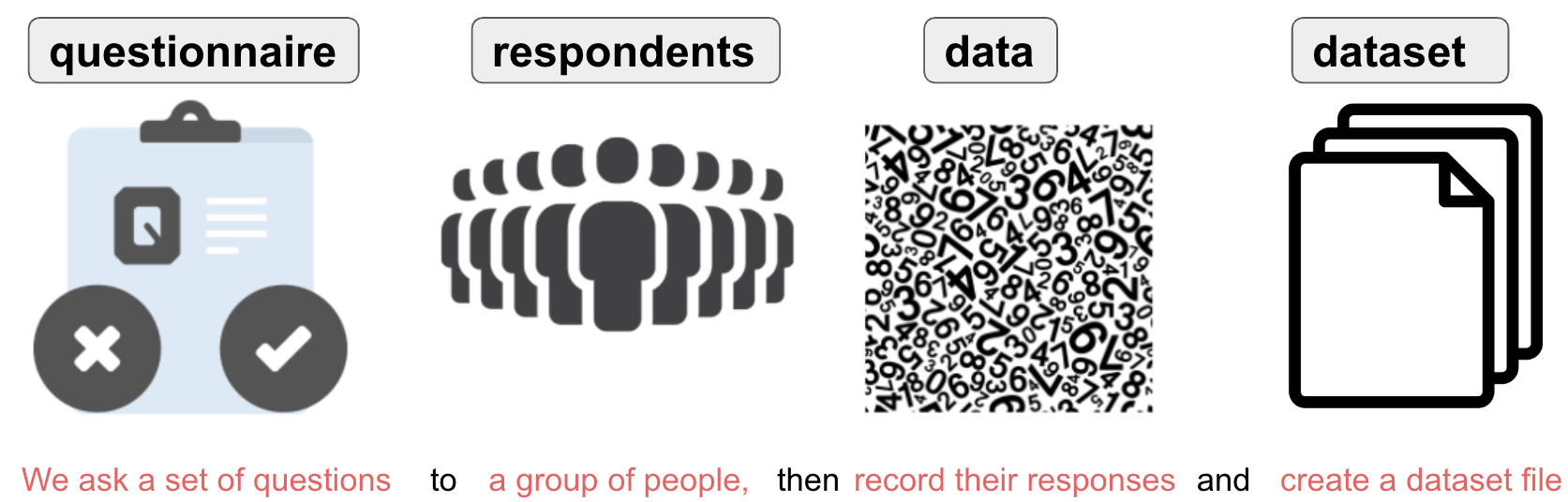
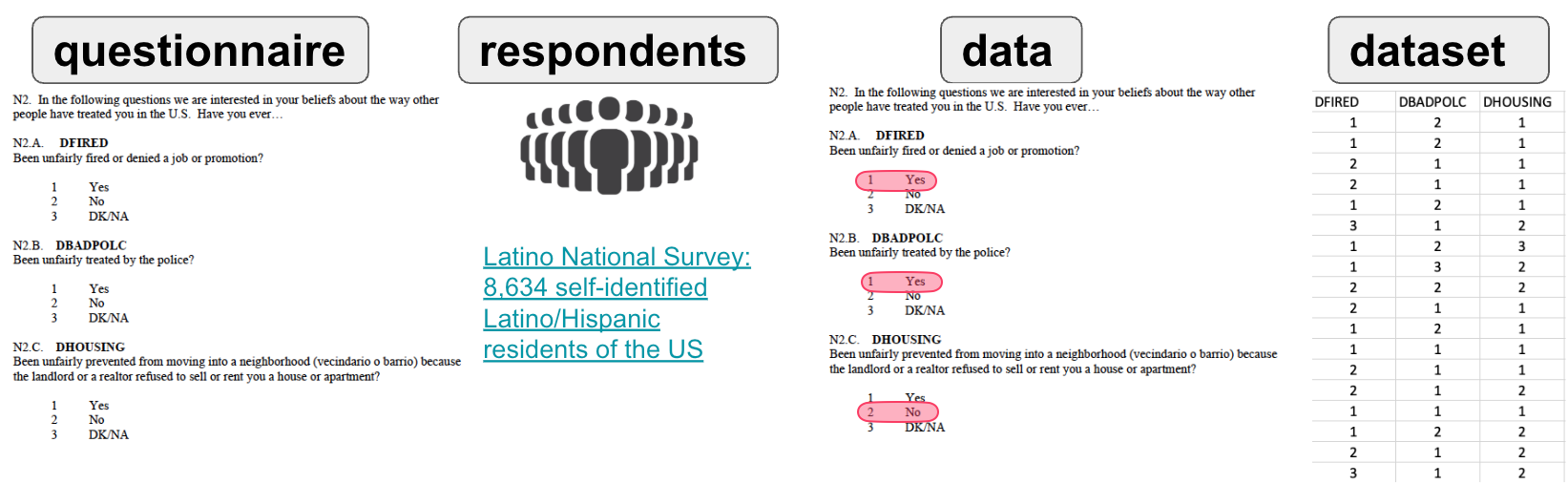
- [[Questionnaire]]: A set of written questions used for collecting information from respondents.
- [[Respondents]]: Individuals who respond to the questions in a questionnaire.
- [[Data]]: The information collected from respondents. The numbers to be analyzed.
- [[Dataset]]: The information collected from respondents. The numbers to be analyzed.
[[Data terminology]]
- The information above are provided in the Variables in GSS lab resources page. We'll be using this page for all modules.
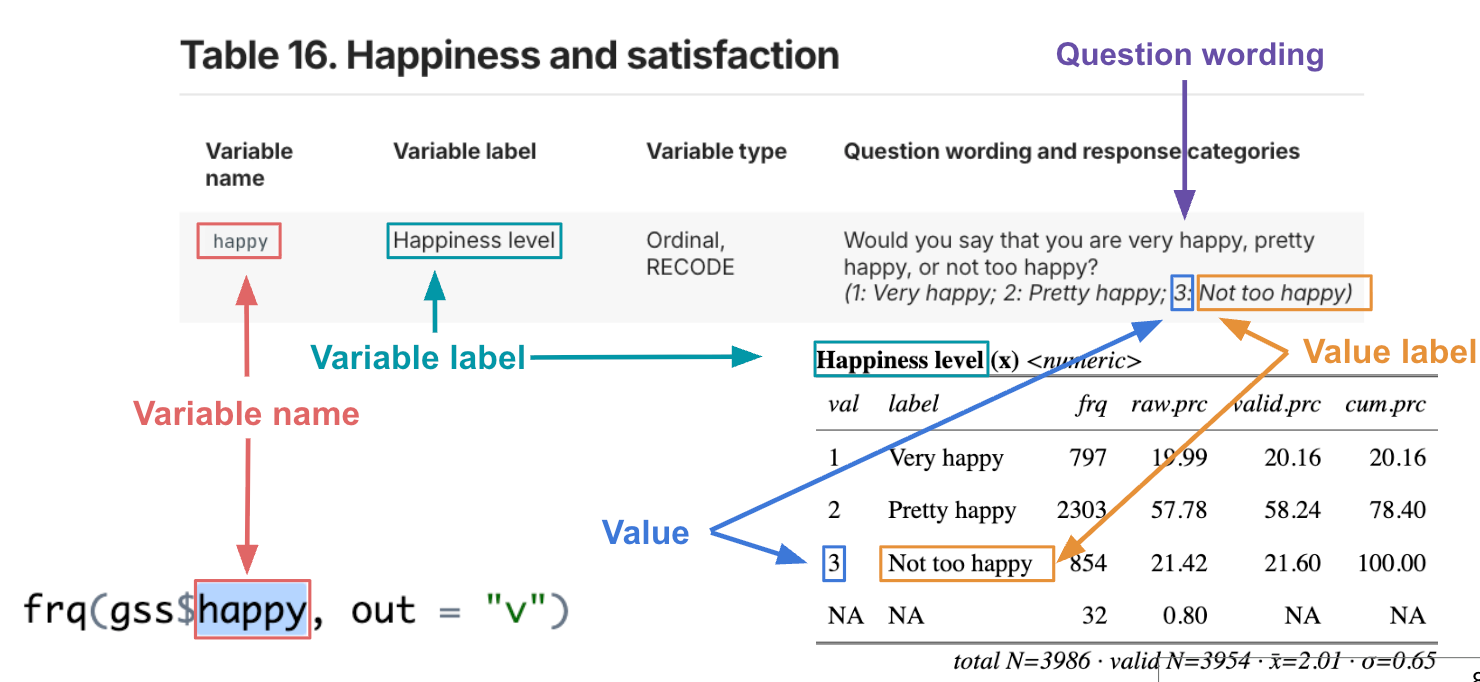
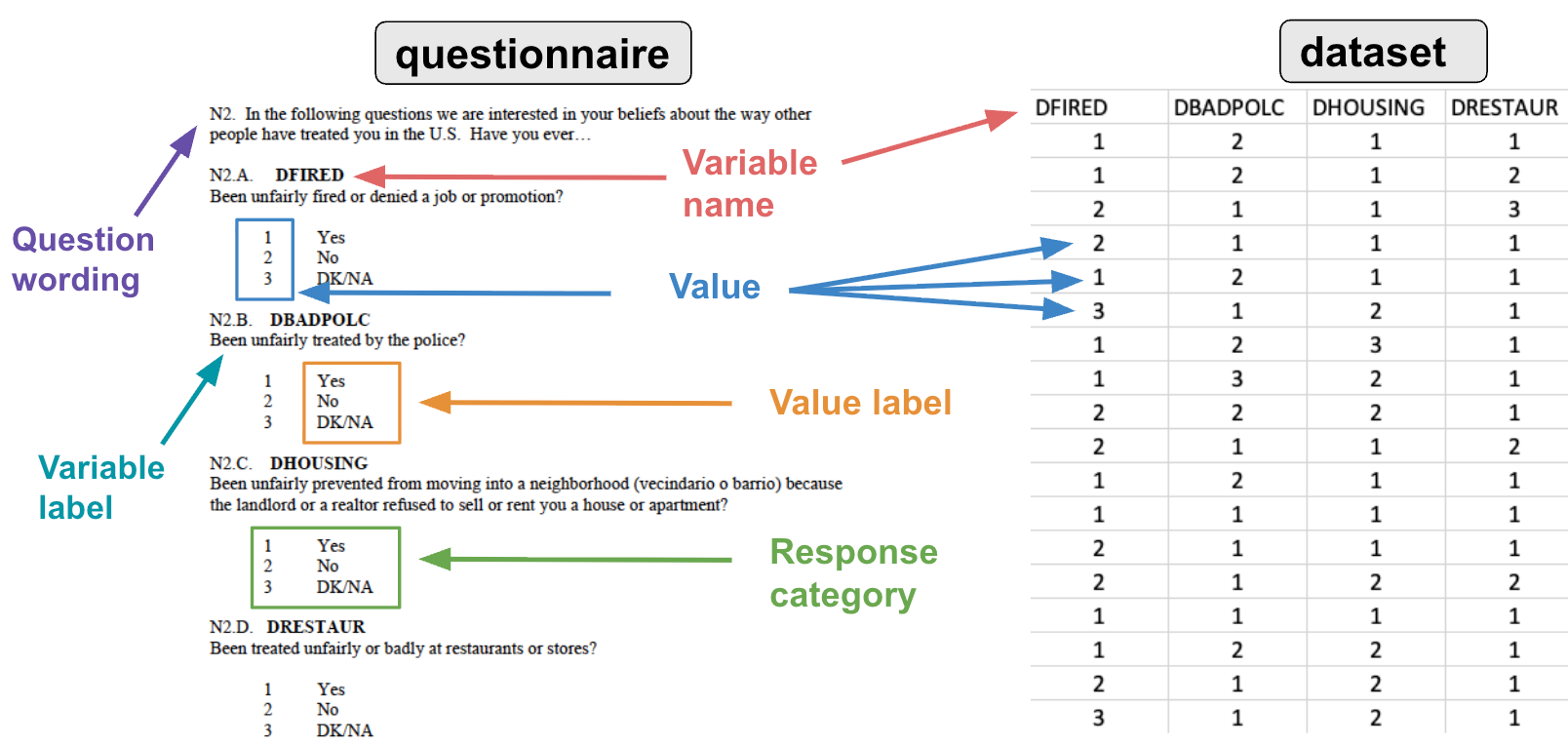
- [[Question wording|ref]]: The exact text of a question as it appears in the questionnaire.
- [[Variable name|ref]]: Unique words assigned to each question. We use variable names in data analysis software.
- [[Variable label|ref]]: Explains what the question is about. We use variable labels in our interpretations.
- [[Value|ref]]: Numbers such as 1, 2, 3, etc., that appear in the dataset representing specific responses.
- [[Value label|ref]]: What those values (numbers) mean, e.g., 1: yes, 2: no, etc.
- [[Response category|ref]]: The combination of values and their corresponding value labels.
- The information above are provided in the Variables in GSS lab resources page. We'll be using this page for all modules.
What is data science?
- Data science is a discipline that allows you to turn raw data into understanding, insight, and knowledge. Here is how data science works:
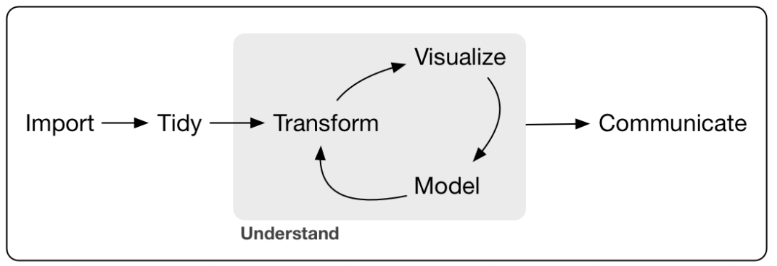
- Importing data means that you take data stored in a file and load it into a data frame in R.
- Tidying your data means each column is a variable, and each row is an observation.
- Transformation includes narrowing in on observations of interest.
- Visualization will show you things that you did not expect.
- Models are a mathematical or computational tool.
- Communicating your results to others.
[[Using R script files]]
- We will follow certain workflows when it comes to using R script files.
- An [[R script file]] is simply a text file containing a set of codes and notes. The script can be saved and used later to re-execute the saved codes. The script can also be edited so you can execute a modified version of the codes.
- Reproducibility: The ability to re-create a past analysis.
- Automation: The ability to rapidly re-create an analysis when data changes.
- Communication: Code is just text, so it is easy to communicate.
- An [[R script file]] is simply a text file containing a set of codes and notes. The script can be saved and used later to re-execute the saved codes. The script can also be edited so you can execute a modified version of the codes.
[[Highlighting and running]]
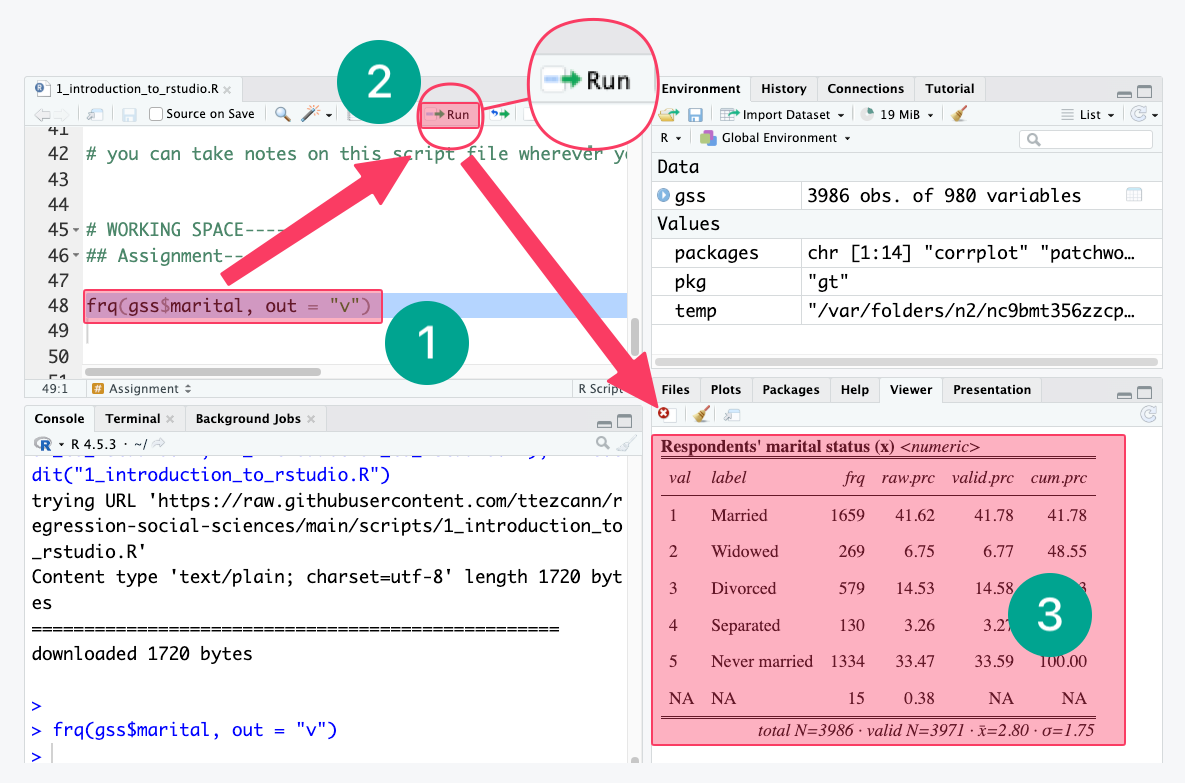
- As R script files are simply text files, we need to highlight the codes and run. Without highlighting and running, the codes will not work.
- We highlight the codes
- And, click “Run”
- Clicking “Run” generates the analysis (a frequency table for this example)
- As R script files are simply text files, we need to highlight the codes and run. Without highlighting and running, the codes will not work.
[[Outline view|ref]]
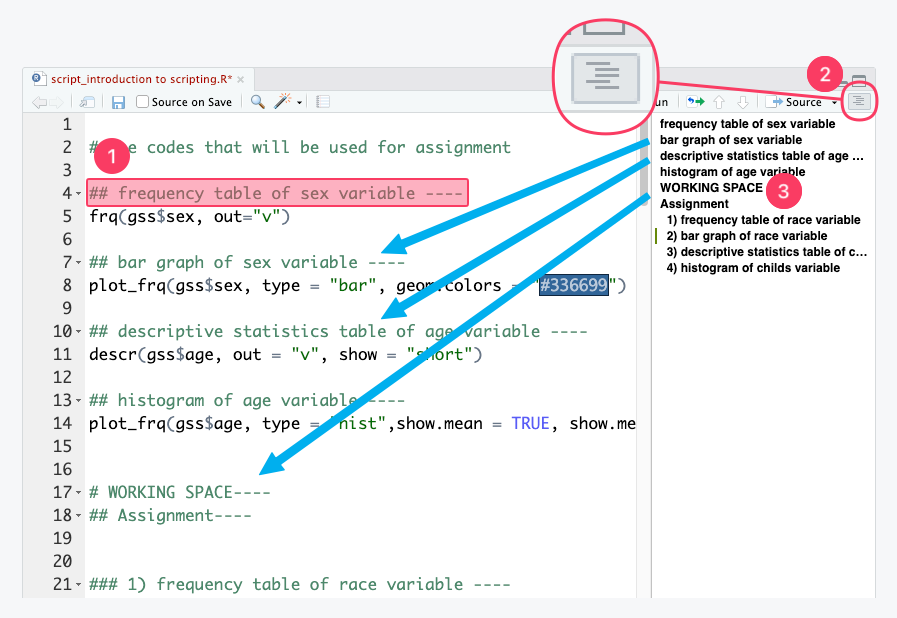
- The R script files in the modules use comments as headings and subheadings to introduce the type of analysis; we always read these before running the code.
- Following these headings,
----is used so that the heading levels are displayed with appropriate indentations in the [[outline view]]. - Click on the menu icon to open the outline view.
- Keyboard shortcut: Ctrl+Shift+O
- Keyboard shortcut: Cmd+Shift+O
- Click on the headings in the outline view to see them in the R script file.
- Following these headings,
- The R script files in the modules use comments as headings and subheadings to introduce the type of analysis; we always read these before running the code.
[[Commenting]]
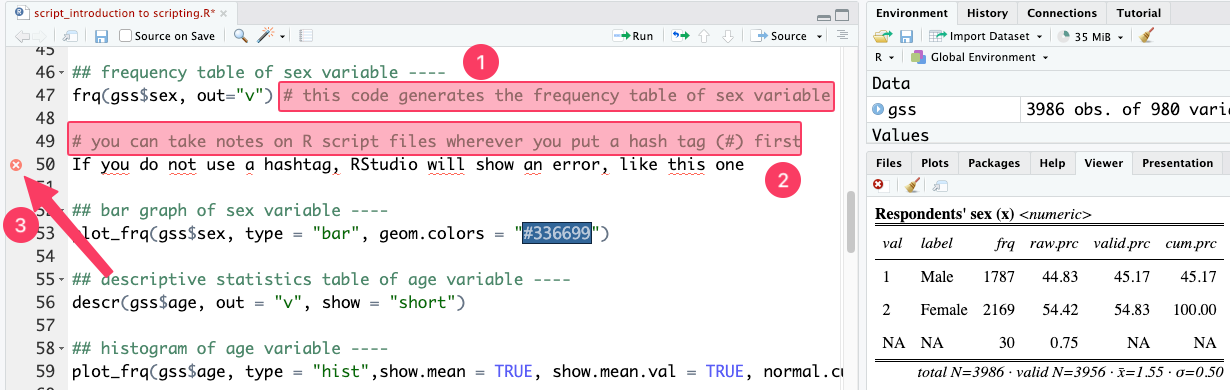
- Commenting on R script files is important to help you remember exactly what you did and why you made specific choices when you revisit the file months or years later.
- A well-annotated R script file allows your colleagues (or your future self) to easily understand, trace, and recreate your analytical step.
- To write a comment, type the hashtag symbol (#) followed by your text.
- R is programmed to completely ignore any text that comes after a hashtag on a given line.
- Because R does not have a built-in feature for large blocks of text, you must place a
#at the beginning of every single line if your comment spans multiple lines.
- Because R does not have a built-in feature for large blocks of text, you must place a
- When an hashtag is not used, R gets confused and shows an error.
- Look at the red cross on line 50. When there is a red cross on the left side of the line number, there is something wrong with our codes.
[[Save R script file|ref]]
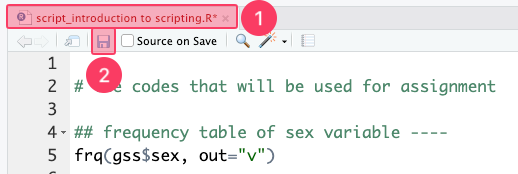
- Regularly saving R script files is another step.
- When we make any changes, the font of the file name will be red with an asterisk (*).
- To save the R script file, click “Save.”
- The R script file name in black means no changes have been made or saved.
- After saving we can close these R script files, which we can find later under the [[files tab]].
- Regularly saving R script files is another step.
[[Working space|ref]]
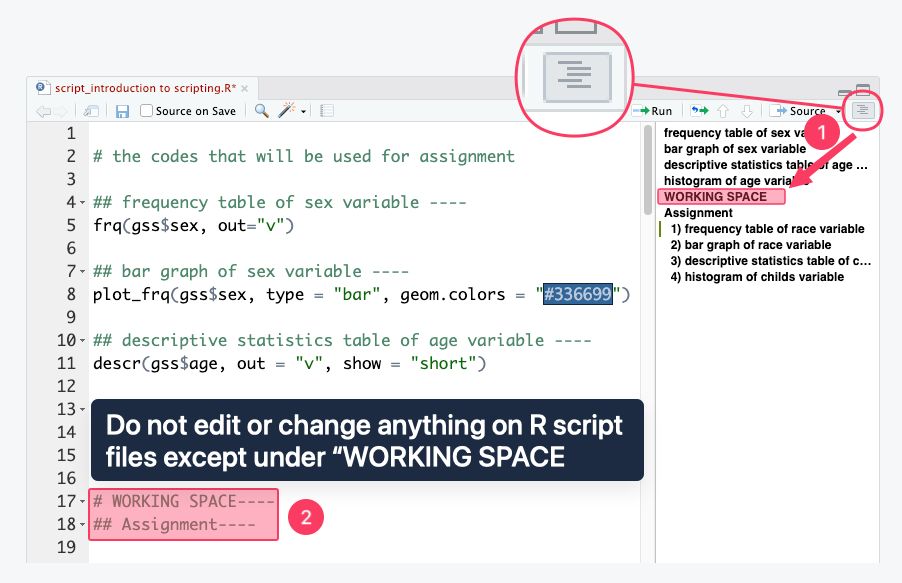
- Working space is the designated section at the bottom of the R script where we will edit codes for assignments.
- For easy navigation click [[outline view]] to see the headings and subheadings. Click "working space."
- Alternatively, scroll down on the R script file.
- The codes for assignments will be put under the “working space."
- We do not edit or change anything on R script files except under "working space."
- Anything above the “working space” is teaching material.
- For easy navigation click [[outline view]] to see the headings and subheadings. Click "working space."
- Working space is the designated section at the bottom of the R script where we will edit codes for assignments.
[[Pasting variable names]]
- Pasting variable names is one of the most important workflow steps. It is very common to miswrite codes, forget commas, etc.
- Therefore, we only change the variable names inside the codes.
- We NEVER type variable names or codes. We ALWAYS:
- Copy Ctrl+C / Cmd+C the variable names (from the modules page and assignments), and
- Paste Ctrl+V / Cmd+V into our codes.
- See what happens if we do not paste, but type the variable names:
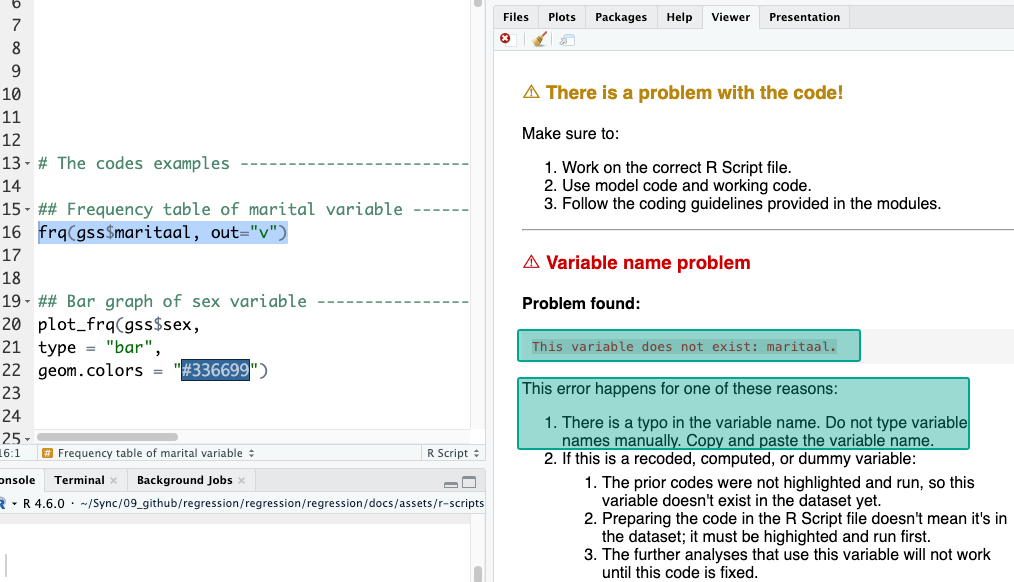
- There is no variable called “maritaal”, but “marital.”
- RStudio warns us that "This variable does not exist: maritaal."
- We copy and paste variable names to avoid this possibility.
- There is no variable called “maritaal”, but “marital.”
[[How to work with codes]]?
-
We never type the codes or variables inside the codes. Instead, we use model code and working code by copying-pasting:
-
(1) [[Model code | ref]]:
-
Model code is a template that shows the correct code structure without being tied to a specific variable; it shows where to paste the variable name,
variable_here. It is a code that serves as a reference and is never edited directly. -
-
-
(2) [[Working code | ref]]:
-
Working code is a copy of the model code edited to include an actual variable from the dataset. Here we replaced
variable_herepart withsex. -
-
-
The workflow:
- Imagine we need a frequency table for the
sexvariable. - Find the frequency table model code from the module page, and copy ([[Search]]
frequency table model code). - Paste it under the “[[working space]]” of the R script file.
- Hit Enter and add a blank line.
- Paste the model code again.
-
The first code is the model code, and the second code is the working code that we will edit. We will replace
variable_herepart withsex. -
Copy
sexand paste to replace it withvariable_here. [[Highlighting and running]] the working code (line 4) will generate the output. If our working code doesn't work, we compare it to the model code to troubleshoot. Maybe we accidentally deleted the comma.
- Imagine we need a frequency table for the
-
[[Find this working code in the R script file|ref]]

- The code on the module pages and in the R script files is identical.
- Right after each code explanation, the module page will say:
- "Find this working code in the R script file."
- All the working code are above the [[working space]].
- "Find this working code in the R script file."
- Right after each code explanation, the module page will say:
- Then, open that module’s R script file in RStudio Cloud, and use [[outline view]].
- [[Highlighting and running]] the working code will generate the exact output shown on the module page.
- Do this for each working code in the modules pages to learn coding.
- [[Highlighting and running]] the working code will generate the exact output shown on the module page.
- The code on the module pages and in the R script files is identical.
[[Keyboard shortcuts]]
- The most frequently used keyboard shortcuts are copy-paste-undo.
-
Do not use mouse right click for these functions.
Copy: Ctrl+C
Paste: Ctrl+V
Undo: Ctrl+ZCopy: Cmd+C
Paste: Cmd+V
Undo: Cmd+Z
-
[[Hand and finger positions]]
-
When using the keyboard shortcuts, do not use both hands. The ideal hand and finger positions are shown below:
- Little finger is on Ctrl and index or middle finger on letters: C - V - Z
- Do not use both hands. Your other hand should be on the mouse (or trackpad).
- Thumb finger is on Cmd and index or middle finger on letters: C - V - Z
- Do not use both hands. Your other hand should be on the mouse (or trackpad).


[[Mouse shortcuts]]
- When it comes to copying, pasting, or replacing variables or codes, we use the following mouse/trackpad shortcuts:
- Do not highlight the existing variable name to replace it with a new variable.
- DOUBLE CLICK on it with your mouse/trackpad.
- DOUBLE CLICK on it with your mouse/trackpad.
- [Single line] Do not highlight all the line to copy or run the code.
- TRIPLE CLICK with your mouse (click three times really fast).
- TRIPLE CLICK with your mouse (click three times really fast).
- [Multiple lines] Highlight with your mouse, carefully.
- Do not highlight the existing variable name to replace it with a new variable.


