RStudio usage⚓︎
Create a free RStudio Cloud account⚓︎
RStudio website⚓︎
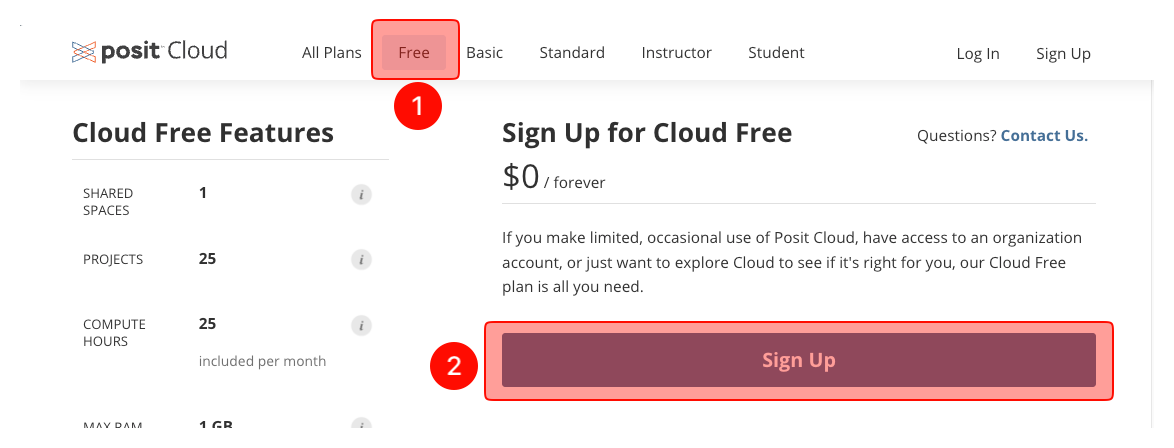
- Go to RStudio website and choose “Free.”
- Click "Sign up."
Email address and a password⚓︎
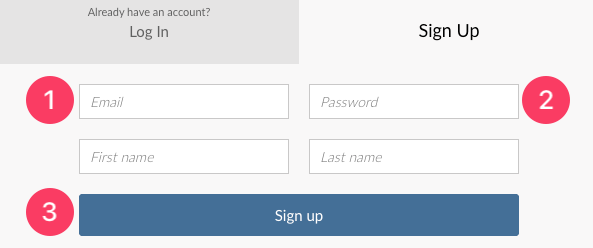
- Put your email address
- Put a password (at least 10 characters). You must:
- Use upper and lower case letters
- Use numbers
- Use special characters
- Click "Sign up".
Verification⚓︎
- Go to your email inbox and click “Verify.”
- You will be directed to RStudio website. If not, click on the link.
New project (RStudio labs)⚓︎
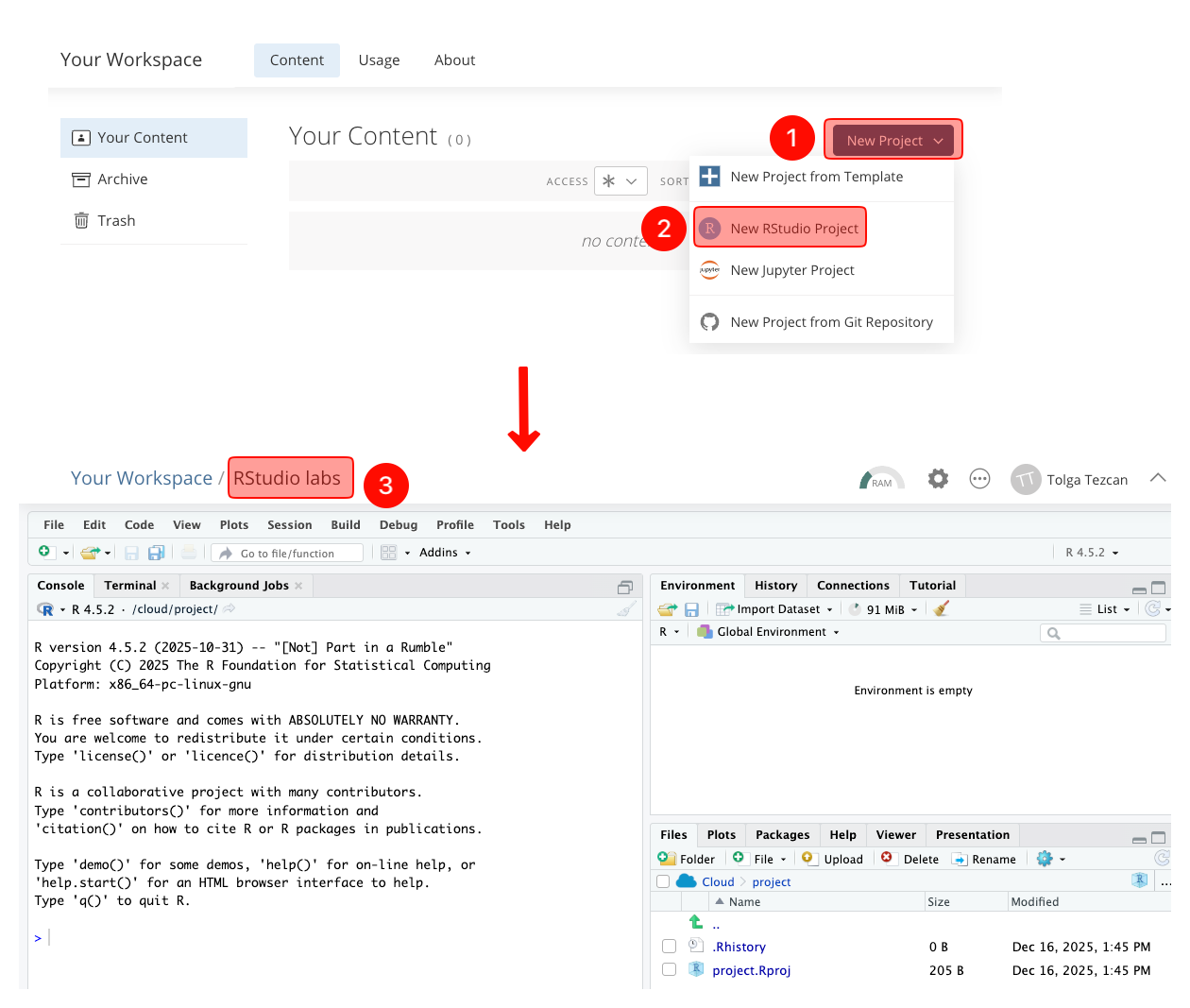
- Click "New Project."
- Choose "New RStudio Project."
- You will wait 10-15 second while RStudio deploys the project. If it takes longer, refresh your page.
-
On the new screen, click on “Untitled Project” and type “RStudio labs”.
RStudio labs project
Many users mistakenly create a separate project for each lab. This is incorrect.
You will not create a new project for each lab.
Instead, you will always work within the existing 'RStudio labs' project throughout the modules.
Install R and RStudio to your personal computer⚓︎
- You can download R and RStudio to your personal computer.
Mac users⚓︎
macOS 13 and higher - Apple silicon (M1-5):⚓︎
- Download R (4.5.3)
- Download RStudio (2026.01.2+418)
For older Intel Macs:⚓︎
- Download R (4.5.3)
-
Download RStudio (2024.04.2+764)
System Preferences
macOS may want you to allow it to download.
Open System Preferences ➜ Security & Privacy ➜ General ➜ Allow (you may need to click the lock at the bottom to unlock).
Windows users⚓︎
Windows 10 and higher⚓︎
- Download R (4.5.3)
-
Download RStudio (2026.01.2+418)
System Preferences
Windows users may need to change some of their settings.
Select Start ➜ Settings ➜ Apps ➜ Apps & features.
Under Installing apps, select "Allow apps from anywhere."
Using RStudio on a university lab computer⚓︎
- Every time you log in to a lab computer, the R script files will install all the packages again.
-
Because when you log out, lab computers revert to their factory settings and deletes the installed packages.
- Type "RStudio" on the search bar of the computer. Open RStudio.
- On RStudio, run the R script file code on the console.
RStudio Cloud FAQs⚓︎
What to do if RStudio Cloud crashes?⚓︎
-
This may happen if your RStudio session consumes too much ram.
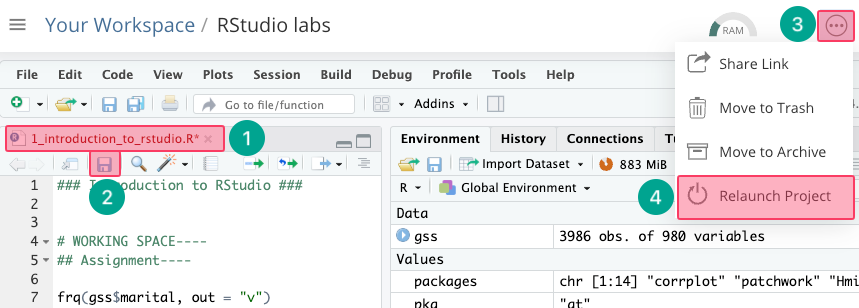
- When we make any changes, the font of the file name will be red with an asterisk (*).
- Save your unsaved RScript file.
- Click the three dots next to the settings gear.
-
Click "Relaunch Project."
System Preferences
After relaunching, we need to use the R Script file code again.
How to check how many hours left in RStudio Cloud?⚓︎
- An RStudio Cloud free account allows you 25 hours of connect time per month.
- Every second the RStudio Cloud is open counts towards this allocated time.
-
Therefore, whenever you are not running code or generating analyses, close the RStudio Cloud browser
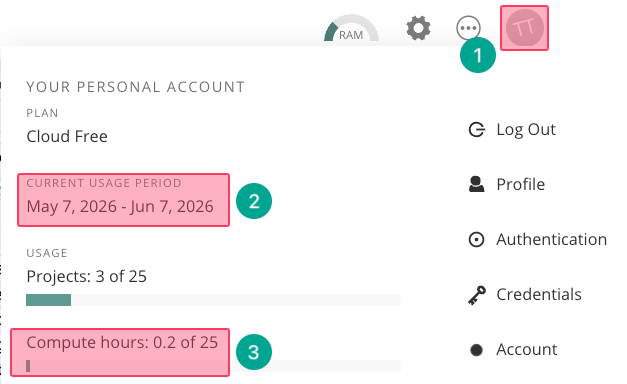
- Click on your name.
- Check the time period.
- Check how many hours you have spent.
What to do if you exceed 25 hours per month?⚓︎
- 25 hours of connect time is enough for the modules. If you exceed this limit, open another free account using a different email address.
What to do if you want your new free account to be identical (files, packages, etc.) to the previous account where you exceeded the time limit?⚓︎
-
Go to the previous account where you exceeded the time limit.
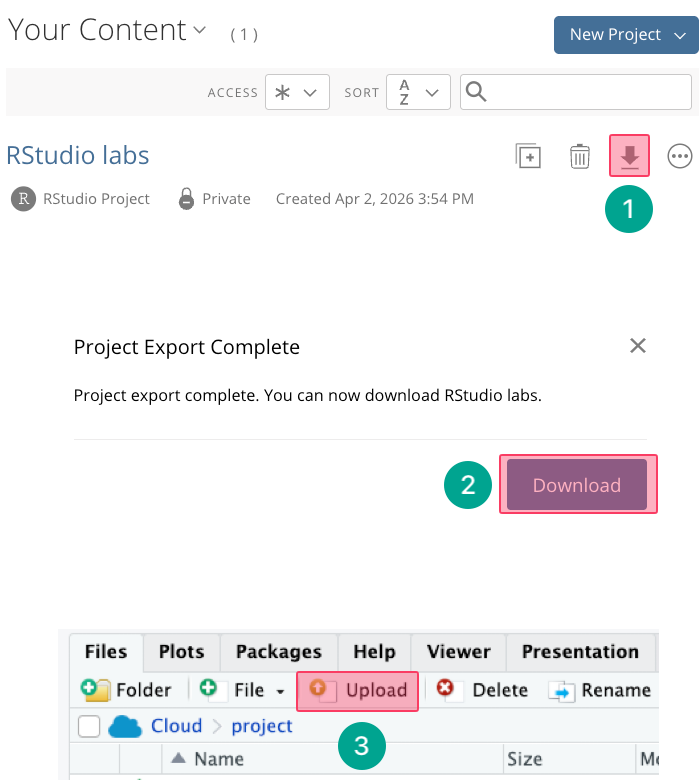
- Click "Export"
- Click "Download"
- It will download a zip file.
- Go to your new account. Upload that zip file to your new account.